Daily Workflow
This is where you'll spend most of your time in Shipmark. Everything here is built around one idea: capturing work should take seconds, not minutes, so you actually keep doing it.
My Logs
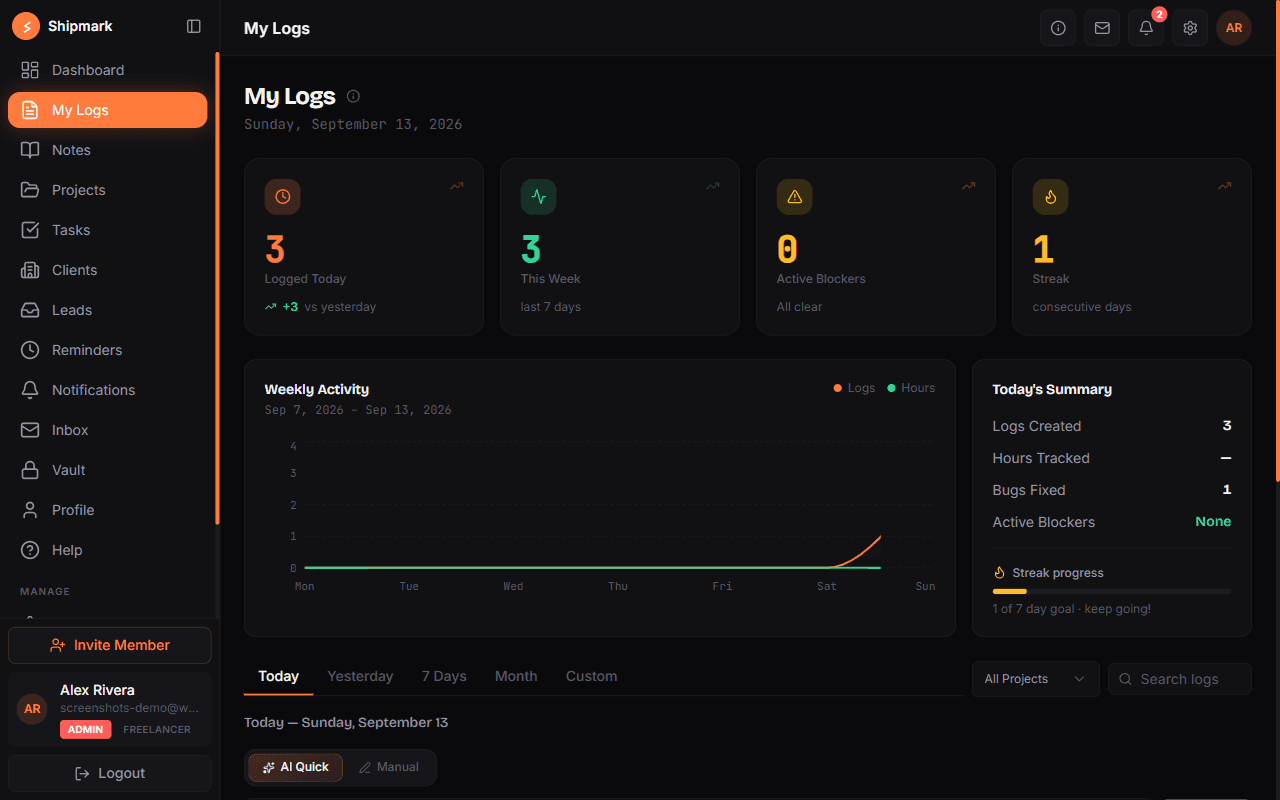
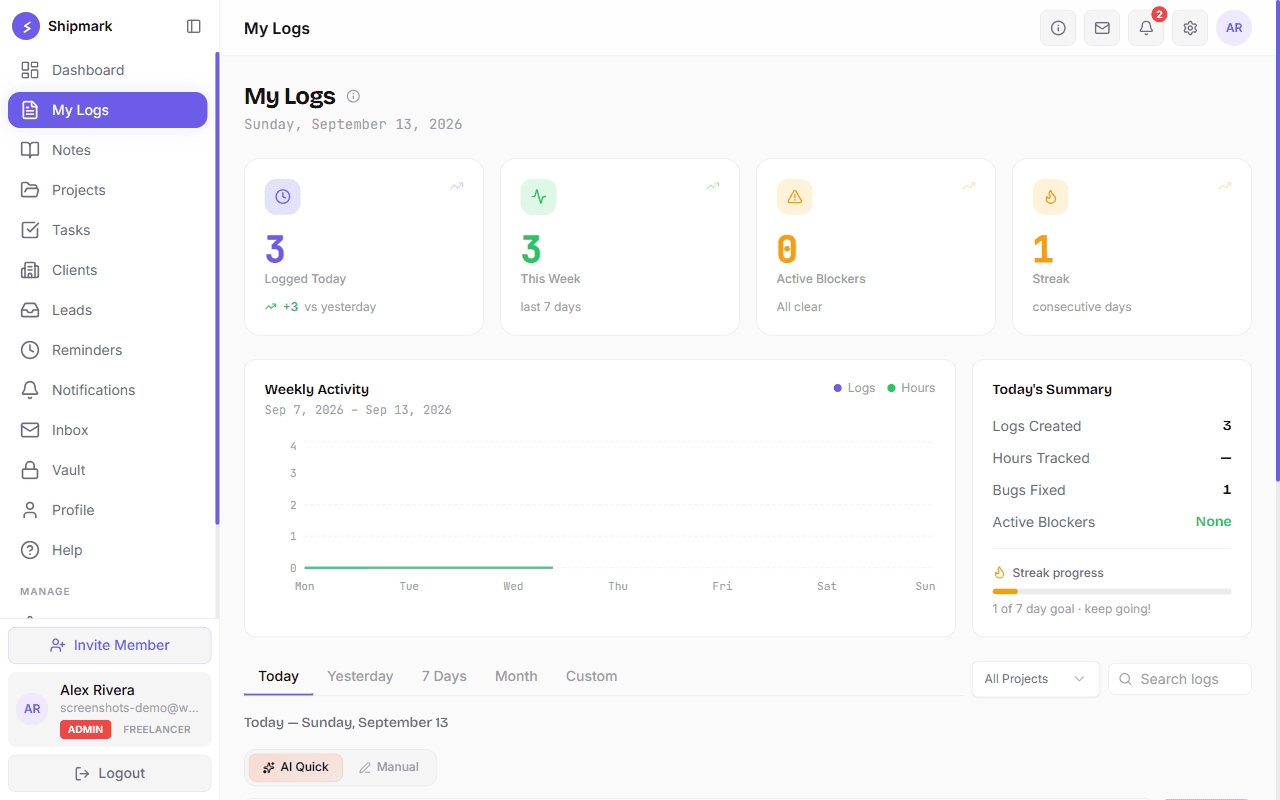
A dated record of what you actually worked on.
Notes
Rich-text space for anything that isn't a dated log entry.
Tasks
Assigned work with priority, status, and comments attached.
Reminders
Time-based nudges for meetings, deadlines, and follow-ups.
Global Search
Press ⌘K and jump straight to anything in your workspace.
A day with Shipmark
Log as you go
A sentence per finished task, in seconds.
Capture the rest in Notes
Anything that isn't a dated entry.
Work through your tasks
Assigned → In Progress → Review → Done.
Let reminders catch what you'd forget
Deadlines and follow-ups, handled on time.
My Logs
A dated record of what you actually worked on.
Why it exists
Status meetings exist because work is invisible by default. A log entry — title, work type, duration, optional notes and screenshots — makes it visible without anyone having to ask.
When to use it
Throughout the day, or in a short batch at the end of it.
- 1
Open "+ New Log"
From the dashboard or the My Logs page.
- 2
Describe the work
Type it naturally — quick logging fills in work type and duration for you — or fill the form manually.
- 3
Tag it
Pick a work type (15 built-in categories) and, if the project has any, a custom tag.
- 4
Attach a screenshot if it helps
Optional, but useful for anything visual.
Pro Tip
Pro Tip
Notes
Rich-text space for anything that isn't a dated log entry.
Why it exists
Not everything worth writing down happened on a specific day for a specific duration — meeting minutes, a running list of gotchas, onboarding docs. Notes is that space, separate from the log timeline.
When to use it
Capturing knowledge you'll want to search for later, not a single day's work.
- 1
Open Notes
From the sidebar.
- 2
Create a note
Choose Private (only you), Public (your whole workspace), or share it with specific teammates.
- 3
Set permissions if sharing with specific people
Each person you share with gets View-only or Can-edit access — set individually, not all-or-nothing.
- 4
Write with the rich-text editor
Headings, lists, and formatting, not just plain text.
Pro Tip
Pro Tip
Tasks
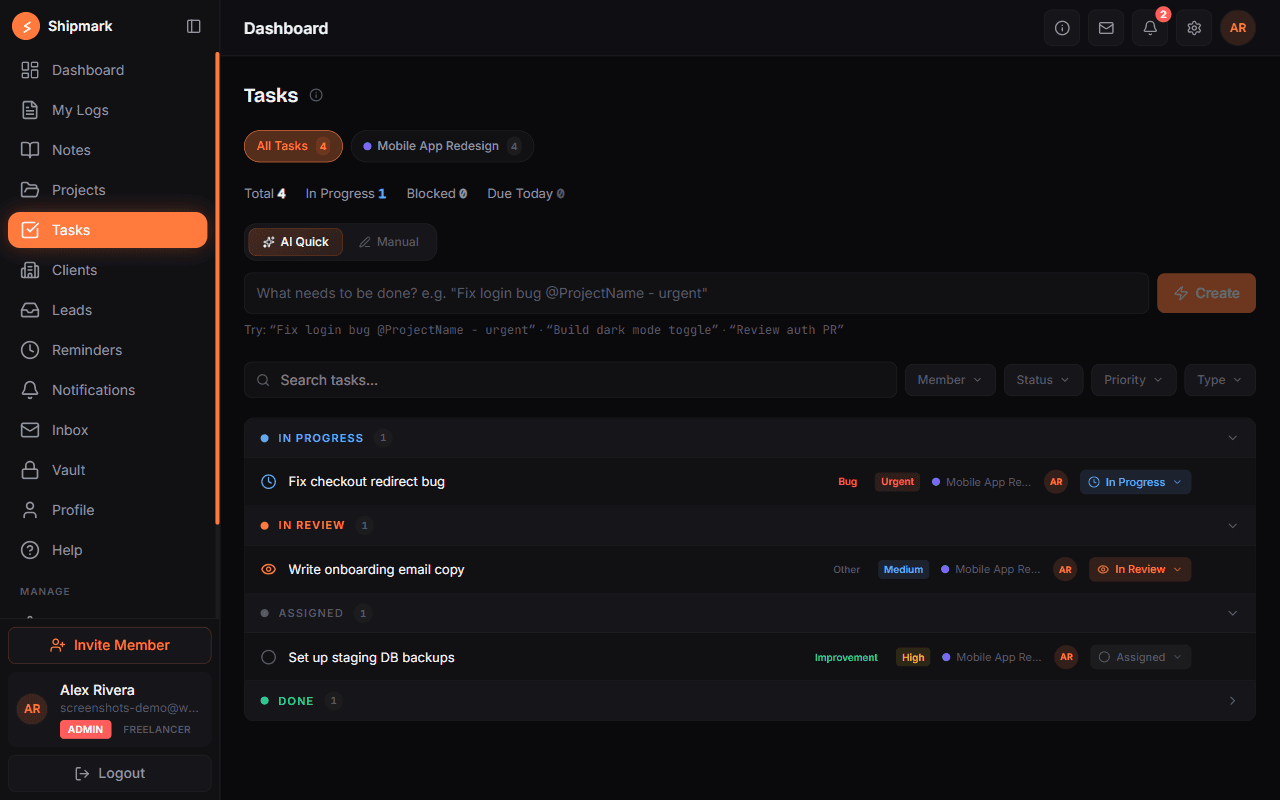
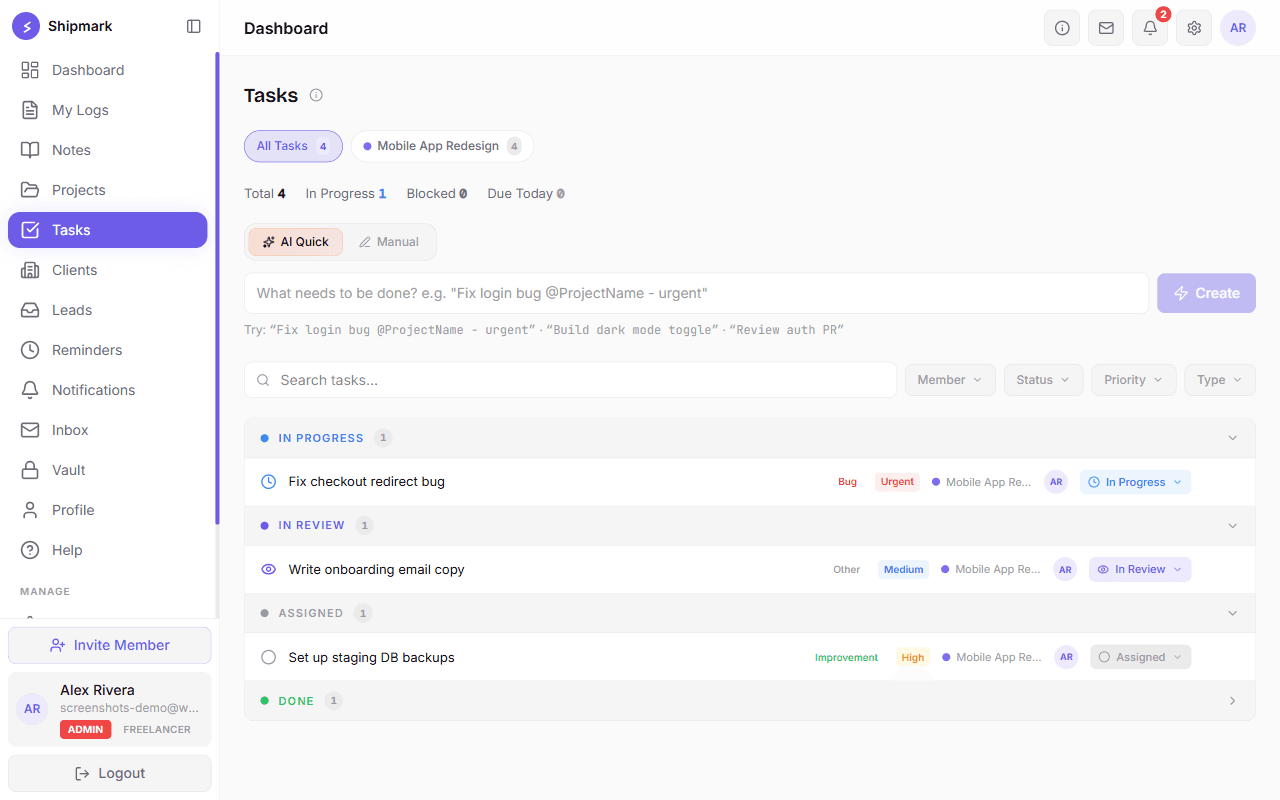
Assigned work with priority, status, and comments attached.
Why it exists
A log records what already happened; a task tracks what still needs to. Keeping the conversation on the task itself — instead of scattered across chat — means nothing gets lost.
When to use it
Anything that needs an owner, a priority, or a deadline.
- 1
Create a task
From a project or the Tasks page — title, description, and priority (Low, Medium, High, or Urgent).
- 2
Assign it
One person per task — Shipmark deliberately keeps task ownership single-assignee, so accountability is never ambiguous.
- 3
Set a due date
Optional, but it's what powers overdue reminders.
- 4
Track it through
Assigned → In Progress → Review → Done (or Blocked / Cancelled along the way).
Pro Tip
Pro Tip
Reminders
Time-based nudges for meetings, deadlines, and follow-ups.
Why it exists
Some things need to surface at a specific moment, not just sit in a list — a client call, a deadline, a follow-up you'd otherwise forget.
When to use it
Anything tied to a specific time rather than an ongoing task.
- 1
Create a reminder
Give it a title, a type (Meeting, Task, Deadline, Follow-up, or General), and a time.
- 2
Get notified
A notification fires 15 minutes before it's due.
- 3
Snooze or dismiss
Push it back or mark it handled once it's done.
Pro Tip
Global Search
Press ⌘K and jump straight to anything in your workspace.
Why it exists
The more you use Shipmark, the more there is to dig through — projects, tasks, clients, notes, vault entries. Global search means you never have to remember which page something lives on.
When to use it
Any time you know what you're looking for but not where it is.
- 1
Open it
Press ⌘K (Ctrl+K on Windows/Linux) from anywhere in the app.
- 2
Start typing
Results appear across Projects, Tasks, Clients, Notes, and Vault as you type.
- 3
Jump straight there
Use the arrow keys and Enter, or click a result, to go directly to it.
Pro Tip
Best practices
- Log immediately after finishing something rather than batching it — the detail you remember at 5pm about a 9am task is thinner than you think.
- Reserve Notes for anything you'd want to search for weeks later; keep logs focused on "what happened, how long".
- Give every task a priority honestly — a list where everything is Urgent stops meaning anything.
Frequently asked questions
Related guides
Need more help?
Can't find what you're looking for here — try these.